There is nothing worse than running into #N/A errors in a report you are just about to present at work. You thought everything was correct and your spreadsheet was reliable, but things didn’t quite go as planned.
This error stands for “Not Available”—meaning a match for your lookup could not be found. The good news is that your formula is probably correct, but your data betrayed you by hiding invisible characters or carrying mismatched formatting.
In this quick guide, you will understand the main causes behind this error and how to fix it fast and reliably. Once you implement these simple fixes, you will never have to deal with this stressful situation again.
Download the Free Practice Spreadsheet
📥 Want to follow along with this tutorial? Click here to download the exact Excel spreadsheet used in this guide. Open the file now to practice and fix your formulas in real-time as you read.
Why Does the #N/A Error Appear in Excel?
The #N/A error stands for “Not Available.” It occurs when Excel looks for a specific value in a dataset but cannot find it. This is a common issue when working with lookup functions like VLOOKUP, XLOOKUP, MATCH, and HLOOKUP.
While the formula syntax is usually correct, structural mismatches in your source data trigger the error.
Common Causes of the #N/A Error
- The lookup value does not exist in the source table.
- Hidden leading or trailing spaces prevent exact matches.
- Data type mismatches (e.g., searching for a number stored as text).
- The lookup range is incorrectly referenced or not locked.
Scenario 1: Quick Fix for Missing Data Using IFERROR
If the value genuinely does not exist in your source data, you can mask the ugly #N/A error with a clean alternative text or a blank cell using the IFERROR function.
The Formula Syntax
Excel
=IFERROR(Your_Formula, "Not Found")Step-by-Step Execution
- Select the cell containing your lookup formula.
- Wrap your existing formula inside the
IFERRORfunction. - Define the fallback value inside the quotation marks.
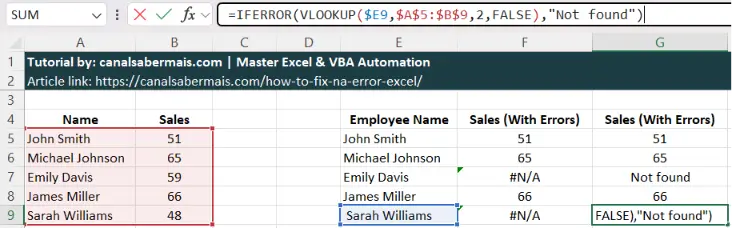
Leaving an unhandled #N/A error visible completely undermines your reporting credibility. Without proper error mapping, you lose control over your data outputs, making it impossible to distinguish between ignorable data gaps and catastrophic formula failures.
Displaying raw spreadsheet errors exposes you to unnecessary scrutiny from stakeholders and management. It raises immediate doubts about your data integrity, potentially undermining your professional authority during critical presentations.
While substituting #N/A with custom strings like "Not Found" is an option, returning a clean blank cell ("") provides the most elegant, executive-ready dashboard layout.
Scenario 2: Fixing Hidden Spaces with the TRIM Function
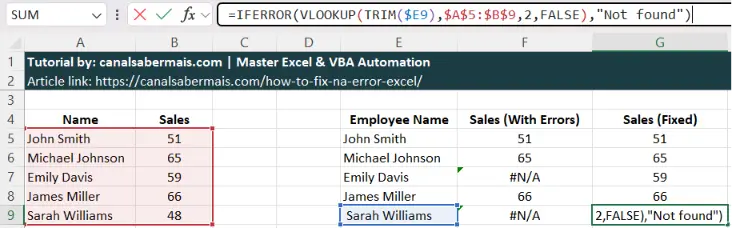
Sometimes the lookup value exists, but Excel still returns #N/A. This happens because of invisible spaces before or after the text characters. Excel requires a perfect match.
The Formula Syntax
Excel
=IFERROR(VLOOKUP(TRIM(E9), A5:B9, 2, FALSE), "Not found")How to Clean the Entire Dataset
- The Formula Method: Wrap your lookup cell in the
TRIMfunction to strip unwanted spaces instantly. - The Permanent Fix: Select your source data range, press
CTRL + H(Find and Replace), type a single space in “Find what”, leave “Replace with” empty, and click “Replace All”.
Scenario 3: Resolving Number vs. Text Mismatches
If one dataset stores an ID as a number (e.g., 1001) and the lookup table stores it as text (e.g., '1001), Excel will fail to link them, resulting in an automatic #N/A error.
How to Fix Data Types Instantly
- Select the column containing the text-formatted numbers.
- Click the yellow warning icon that appears next to the selection.
- Select Convert to Number.
Alternatively, force conversion inside your formula by multiplying the text lookup value by 1:
Excel
=VLOOKUP(E9*1, B5:C9, 2, FALSE)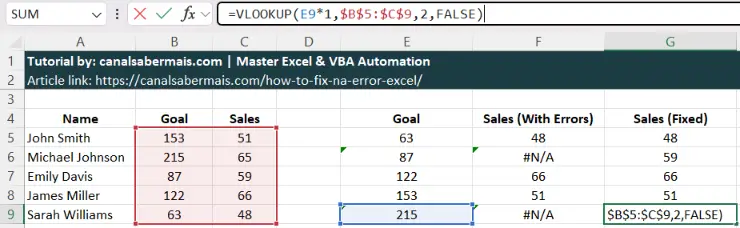
Frequently Asked Questions (FAQ)
What is the fastest way to hide #N/A errors in Excel?
The absolute fastest method is wrapping your lookup formula inside the IFERROR function. By coding =IFERROR(your_formula, ""), Excel bypasses the error state and leaves the target row completely blank and presentation-ready.
Why is VLOOKUP returning #N/A when the value definitely exists?
This mismatch typically happens due to hidden trailing spaces or conflicting data types, such as searching for a numeric ID inside a column configured as text. If you are facing this specific issue, you can follow our dedicated guide to fix VLOOKUP #N/A errors in Excel. Cleaning the range using the TRIM or VALUE functions will align the data structures correctly.
What is the difference between IFERROR and IFNA?
IFERROR catches every computational breakdown, including division by zero (#DIV/0!) and syntax faults (#NAME?). Conversely, IFNA strictly targets the #N/A designation, allowing you to intercept harmless data gaps while keeping critical calculation bugs visible.
Does hiding #N/A errors affect spreadsheet calculation speeds?
Using IFERROR on small to medium data sheets has zero noticeable performance impact. However, wrapping heavy, legacy nested functions across millions of data rows can increase processing latency, making modern functions like XLOOKUP highly preferable for large enterprise sheets.
Wrapping Up: Keep Your Excel Reports Error-Free
After reviewing the fixes and solutions presented in this article, it should be clear that IFERROR and TRIM are your best friends to prevent the #N/A error and make your reports much more elegant and reliable.
If this quick guide saved you time today, leave a comment below sharing which method works best for you to avoid workplace headaches. Do you handle this error using a different solution?