If you build financial models or manage corporate reports daily, you are likely familiar with the biggest flaw of the traditional VLOOKUP function. You insert a single new column into your data block, and your entire spreadsheet instantly returns a string of #REF! errors or—worse—silent, incorrect values. To make matters more frustrating, you have likely wished for a native way to perform a left lookup without stacking multiple functions together.
For teams using modern versions of Excel with access to XLOOKUP, a critical decision must be made: is it truly worth the operational effort to upgrade legacy worksheets, or should you keep fixing broken formulas manually? To permanently eliminate these calculation vulnerabilities, professionals need to understand the structural logic behind XLOOKUP vs VLOOKUP in Excel.
This quick guide delivers a practical syntax mapping approach. You will learn how to replace the outdated VLOOKUP method across all business scenarios, eliminating complex INDEX/MATCH workarounds and cleaning your workspace natively.
Download the Free Practice Spreadsheet
📥 Want to follow along with this tutorial? Click here to download the exact Excel spreadsheet used in this guide. Open the file now to practice and fix your formulas in real-time as you read.
XLOOKUP vs VLOOKUP: Key Structural Differences
The main limitation of VLOOKUP is its inability to look left natively. It requires a fixed table array and an exact column index number to retrieve target data.
XLOOKUP eliminates these constraints by using independent lookup and return arrays. This structural change means your formulas will not break when columns are added or removed.
| Feature | VLOOKUP | XLOOKUP |
|---|---|---|
| Lookup Direction | Left-to-Right only | All directions (Left, Right, Up, Down) |
| Column Dependency | Breaks if columns are inserted | Immune to column insertions |
| Default Match Type | Approximate match (True) | Exact match (0) |
| Built-in Error Handling | Requires IFERROR wrapper | Native [if_not_found] argument |
VLOOKUP also processes calculations slower on massive datasets because it scans entire table blocks. XLOOKUP targets specific ranges, optimizing spreadsheet performance.
How to Convert VLOOKUP to XLOOKUP (Syntax Breakdown)
To upgrade your corporate models, you must understand how arguments map between both Excel functions.
A standard VLOOKUP formula requires four strict arguments: the lookup value, the source table block, the column index number, and the range lookup mode.
=VLOOKUP(lookup_value, table_array, col_index_num, [range_lookup])The modern XLOOKUP syntax separates the search array from the results array, making calculations robust and completely dynamic.
=XLOOKUP(lookup_value, lookup_array, return_array, [if_not_found], [match_mode])Notice that the column index number is entirely gone. You simply select the single column where the answer resides.
Step-by-Step Example: Looking Up Employee Data
Consider an HR dataset where employee IDs are located in Column A, and their respective corporate email addresses are stored in Column D.
Using the old method to extract an email address based on an ID requires referencing the full three-column matrix block.
=VLOOKUP(F5, A5:C14, 3, FALSE)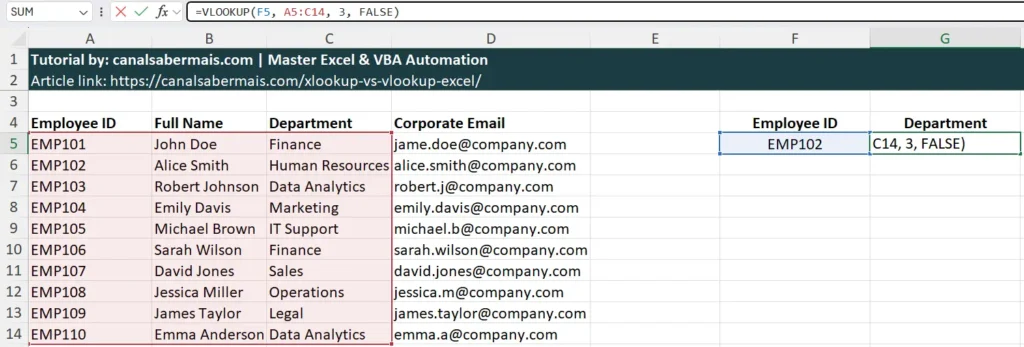
If an analyst inserts a new column between Column B and Column C, the formula above instantly returns incorrect data or a #REF! error.
Here is how to solve this structural vulnerability permanently using the modern XLOOKUP syntax alternative.
=XLOOKUP(F5, A5:A14, C5:C14,"Not found", FALSE)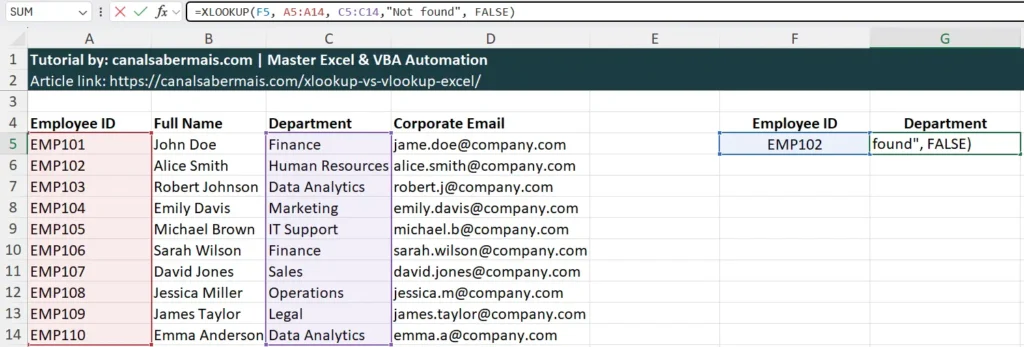
Because the lookup array (A5:A14) and return array (C5:C14) are isolated references, moving columns will never break the execution path.
Advanced Feature: Looking Left Without INDEX/MATCH
In legacy financial templates, looking up a value to the left of your reference column required combining INDEX and MATCH functions.
If employee names are in Column B and you need to find their ID in Column A, VLOOKUP fails natively.
=INDEX(A5:A14, MATCH(F5, B5:B14, 0))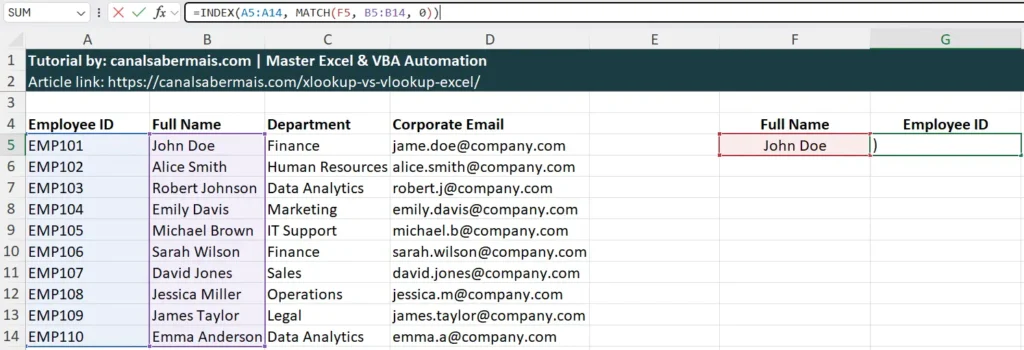
XLOOKUP executes this complex operation effortlessly without nesting multiple functions together.
=XLOOKUP(F5, B5:B14, A5:A14)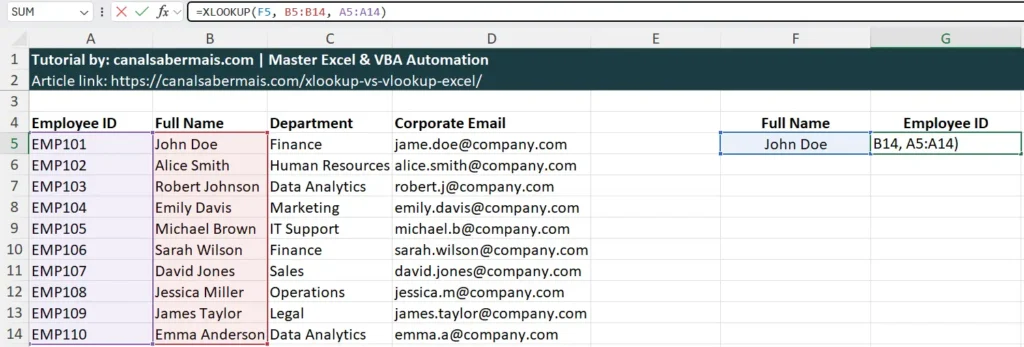
This streamlined approach makes your financial worksheets lighter, faster, and much easier for corporate teams to audit.
Handling Errors Natively in Financial Reports
When a traditional VLOOKUP cannot find a target value, it outputs a raw #N/A error to the worksheet grid.
To clean your data view, you previously had to wrap the entire statement inside an IFERROR block.
=IFERROR(VLOOKUP(F5, A5:C14, 3, FALSE), "Not Found")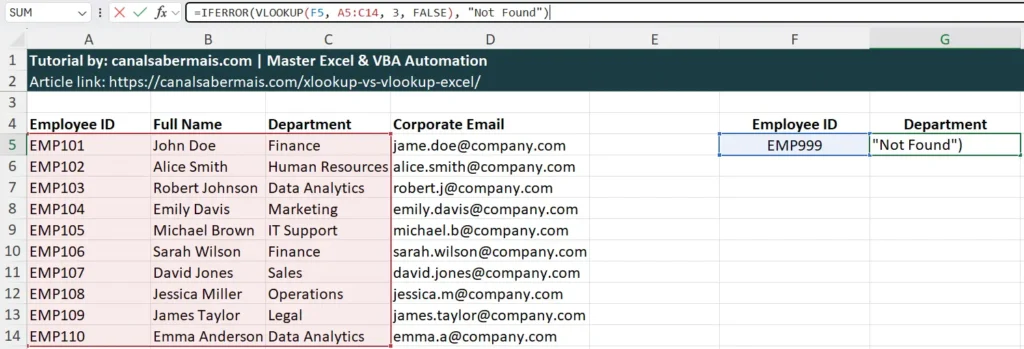
XLOOKUP integrates error management straight into its primary arguments via the optional fourth parameter.
=XLOOKUP(F5, A5:A14, C5:C14, "Not Found")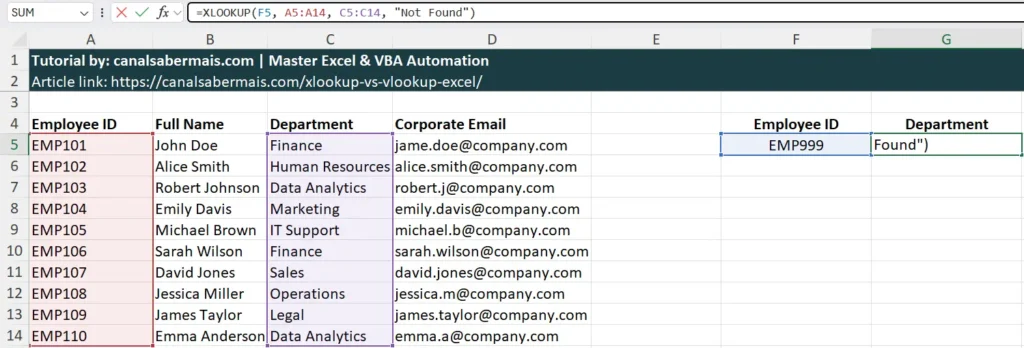
This design prevents redundant evaluations, keeping the application memory footprint low during calculations.
FAQ: Common XLOOKUP vs VLOOKUP Questions
Is XLOOKUP available in all versions of Excel?
No. XLOOKUP is available in Microsoft 365, Excel 2021, and Excel for the Web. It is not backward compatible with Excel 2019 or older retail versions.
Does XLOOKUP replace VLOOKUP completely?
For modern environments using Microsoft 365, yes. XLOOKUP is safer, faster, and more versatile. VLOOKUP is only kept to support legacy workbooks.
Is XLOOKUP faster than VLOOKUP?
Yes. XLOOKUP only processes the specific lookup and return ranges selected, whereas VLOOKUP evaluates the entire table array parameters.
Final Verdict: Time to Upgrade Your Worksheets
The operational choice between these two Excel functions is clear. XLOOKUP is the undisputed winner for modern business environments because it handles everything VLOOKUP does while offering massive advantages in computing speed, structural durability, and code auditing clarity.
Continuing to use the traditional VLOOKUP function is only justifiable if your enterprise relies heavily on legacy databases where inserting new columns is out of the question, or if your organization is locked into old desktop versions of the software.
For corporate analysts still relying on old routines, we highly recommend evaluating an upgrade to Microsoft 365 and executing a gradual migration of your core dashboards. Taking the time to transition your critical data models today will save hours of maintenance overhead as your reporting dashboards evolve tomorrow.